

Your iPhone is more powerful than you think. Buried in iOS is an app called Shortcuts that most people ignore entirely, and those who do open it often close it immediately, overwhelmed by the programming-like interface. That’s a mistake. Shortcuts can transform tedious, repetitive photography tasks into single-tap operations, and once you understand the basics, you’ll wonder how you ever managed without them. I’ve made five useful Shortcuts exclusively for Fstoppers readers.
To illustrate just how deep this rabbit hole goes, let me describe two shortcuts I built for my own daily use that have nothing to do with photography. The first is called “Morning,” which runs when I wake up. It checks my calendar for the day. It pulls my current location and checks for any active weather alerts in my area. It queries a sports API to see if my favorite baseball team plays today. It fetches forecast discussions from meteorological sources and generates educational content using AI, including a science term of the day and a historical weather fact. It compiles news headlines, both national and local. Then it takes every single piece of data it collected and feeds it to ChatGPT with instructions to assemble a natural, conversational script. Finally, my phone speaks the entire briefing aloud. I wake up to a personalized morning show covering everything I care about, all without touching a single app. The specific content is entirely customizable: you could swap baseball for soccer scores, replace weather facts with photography tips, or add stock prices and remove news entirely. The architecture supports whatever combination of information matters to you.
The second shortcut, “Bedtime Charging,” triggers automatically whenever I plug my phone into its charger during evening hours. It enables Do Not Disturb, adjusts the volume, queries my calendar for tomorrow’s events and reminds me to set an alarm, uses AI to generate a spoken summary of my schedule, plays that audio aloud, and then turns off my house lights via HomeKit. One physical action I was already doing every night now cascades into an entire bedtime routine.
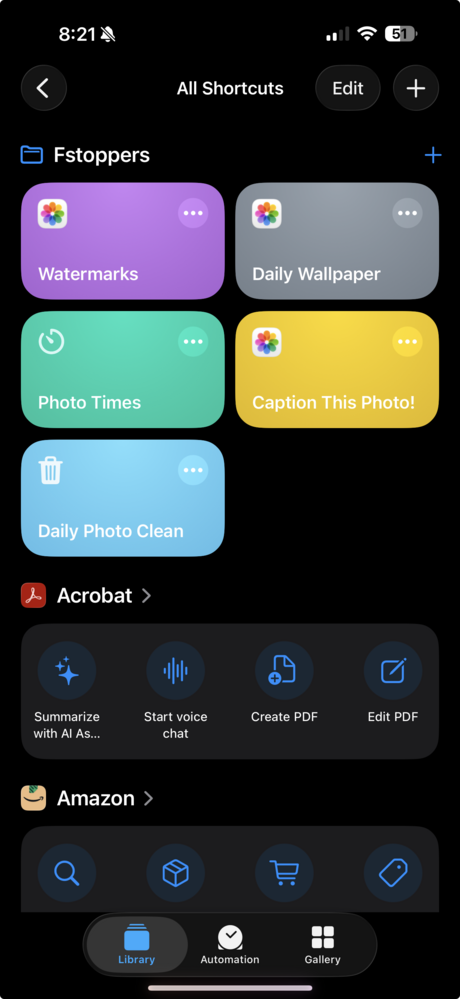 Why am I telling you about weather APIs and baseball scores in a photography publication? Because if Shortcuts can do all of that, imagine what it can do for your photography workflow. Watermarking images, generating captions, calculating golden hour, cleaning up your photo library: these are trivially simple compared to the complex examples above. The five shortcuts I’m sharing today are exclusive to Fstoppers readers, and each one addresses a real friction point in the photography workflow. Some are simple enough to run on any iPhone, while others leverage the AI capabilities of newer devices to do things that would have seemed like science fiction just a few years ago.
Before we dive in, a few practical notes. You can add any shortcut to your home screen as a widget or app icon, giving you one-tap access without even opening the Shortcuts app. Some shortcuts can be triggered by automations, meaning they run automatically when certain conditions are met, such as a time of day, arrival at a location, or connecting to a specific Bluetooth device. And for shortcuts that use ChatGPT integration, you’ll need an iPhone 15 Pro or later, or any phone in the iPhone 16 lineup on, as these features require Apple Intelligence and the neural processing power of newer chips.
Shortcut #1: Watermarks
Whether you agree philosophically with watermarking or not, there’s no denying it serves a practical purpose for many photographers. The problem is that watermarking is tedious. Opening each image in an editor, positioning your watermark, exporting, and repeating the process dozens of times turns a simple protection measure into a time sink that discourages consistent use.
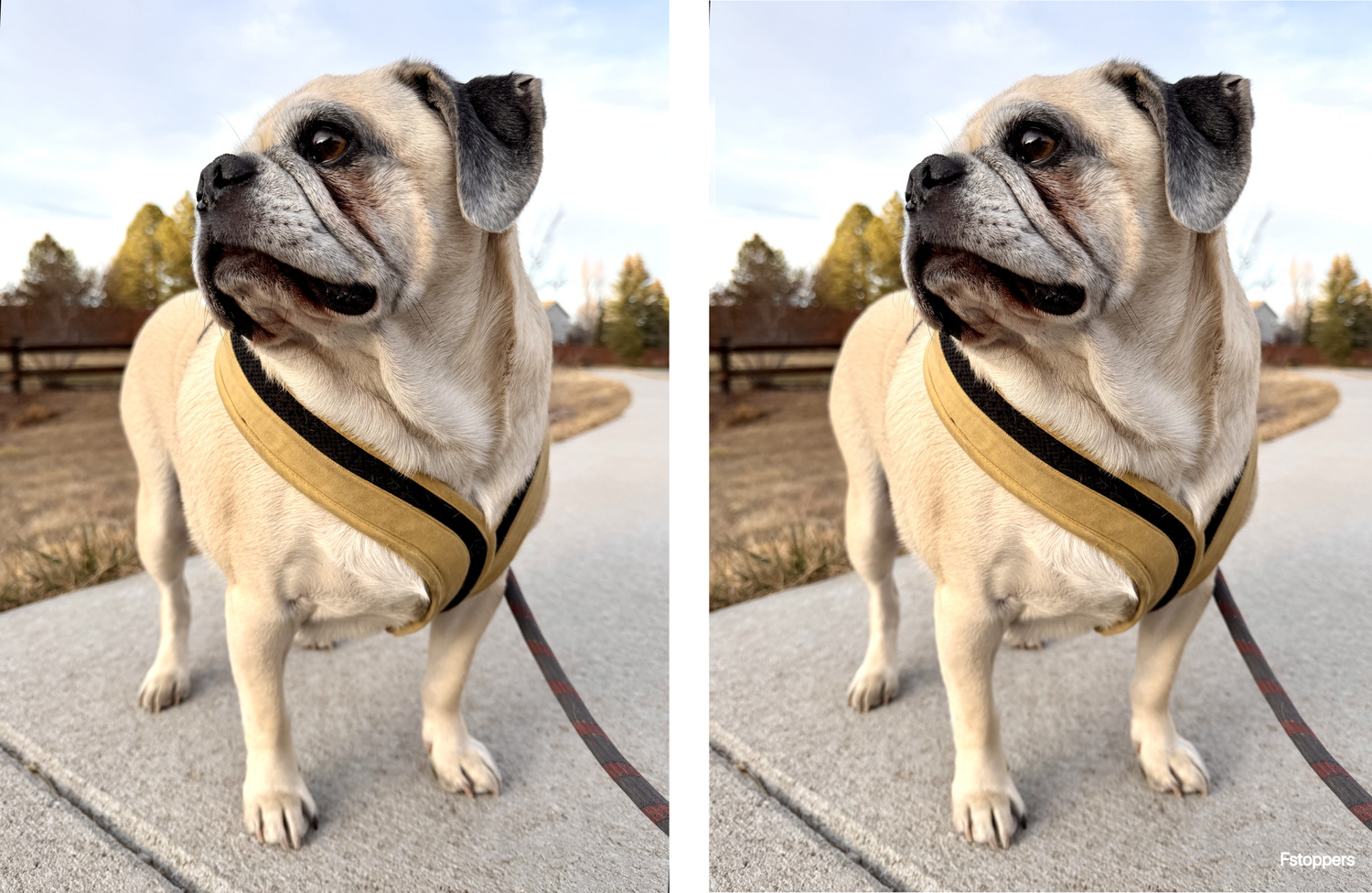 This shortcut eliminates that friction entirely. When you run it, you’re prompted to select photos from your library, then presented with a menu offering five watermark positions: Top Left, Top Right, Bottom Left, Bottom Right, and Center. Make your choice once, and the shortcut applies your watermark to every selected image automatically, saving the results to your Recents album. Select 50 photos, tap a few times, and you’re done in seconds rather than the better part of an hour.
To customize this shortcut, open it in edit mode and look at the very first action at the top, a Text block that contains the watermark text. Simply replace that text with your own name, brand, or website. That’s the only change required to make the shortcut yours. You can also adjust how far the watermark sits from the image edges if you prefer it closer to or further from the borders. The position menu can be simplified if you always use the same corner, or expanded with additional options if you want more granular control.
Shortcut #2: Daily Wallpaper
This is the simplest shortcut in the collection, requiring only three actions, but its impact on daily life is surprisingly meaningful. We all have thousands of images sitting in our photo libraries that we never look at after the initial edit and export. This shortcut changes that by automatically rotating your device wallpaper through a curated selection of your own work.
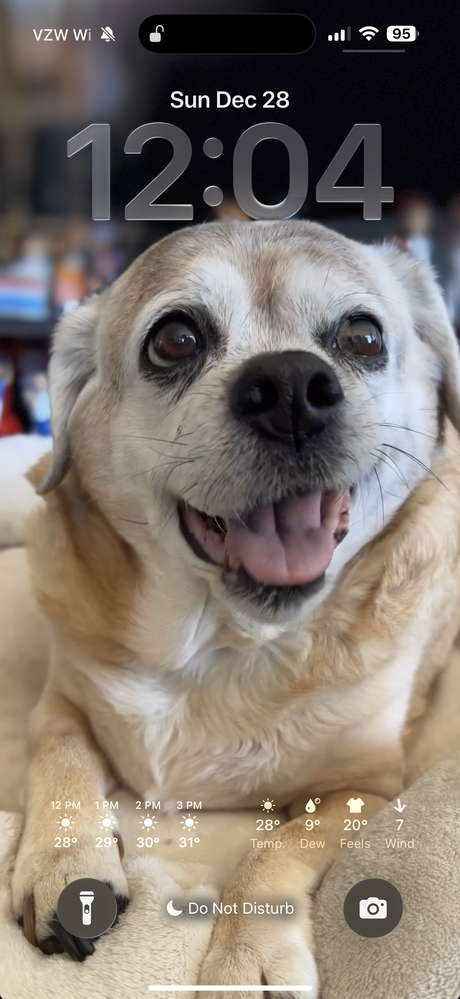 The shortcut looks for images in an album called “Wallpapers,” selects one at random, and sets it as your device background. That’s it. The magic isn’t in the shortcut itself but in how you deploy it. Add it to your home screen for manual use, or set it up as an automation that runs at a specific time each day, perhaps 6 AM, so you wake up to a fresh image every morning. You could also trigger it when you arrive at a specific location, connect to your car’s Bluetooth, or any other condition iOS automations support.
Before using this shortcut, you’ll need to create an album in your Photos app called “Wallpapers” (spelled exactly that way) and populate it with your favorite images. The shortcut won’t work without this album in place. Vertical orientations work best for phone wallpapers. If you want to use a different album name (for example, one you already have filled with images), you can open the shortcut in edit mode and change the album reference in the Find Photos action.
Shortcut #3: Photo Times
Golden hour, blue hour, civil twilight, nautical twilight, astronomical twilight: photographers throw these terms around constantly, but actually determining when these windows occur at your specific location typically requires opening a dedicated app or website. This shortcut delivers all of that information instantly, processed and formatted by AI into a clean, readable summary.
When you run the shortcut, it grabs your current GPS coordinates and queries sunrise-sunset APIs for comprehensive astronomical data. Your timezone is captured automatically for accurate local time conversion. All of this raw data feeds into ChatGPT with precise instructions to return a formatted list of times covering sunrise, sunset, golden hour, morning and evening blue hour, and all the twilight phases that matter for different types of photography.
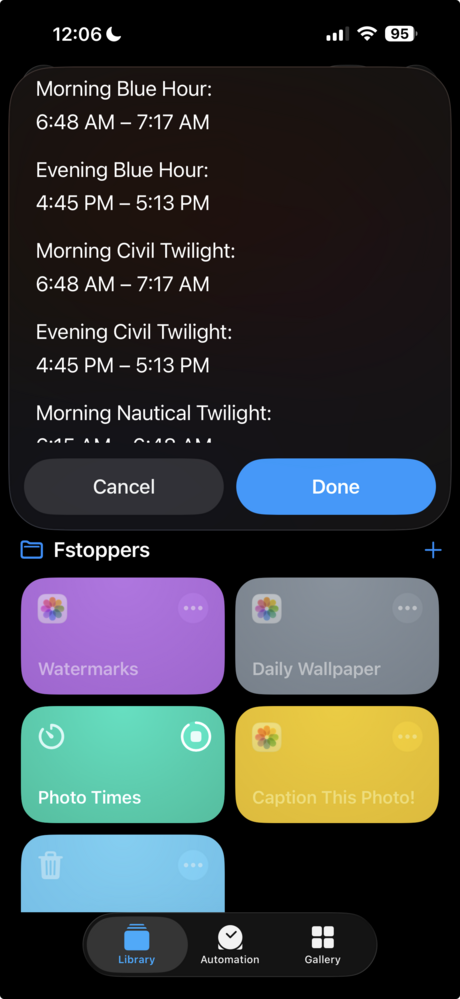 This shortcut requires an AI-capable iPhone because the ChatGPT integration handles the work of parsing API responses and converting timestamps into a readable format. Landscape photographers will find the comprehensive twilight breakdown particularly valuable since different styles of photography favor different phases. If you’re looking to develop your skills in that area, Fstoppers offers Photographing the World: Landscape Photography and Post-Processing, which covers timing and light in depth. Astrophotographers need to know exactly when astronomical twilight ends to begin shooting stars, and for those interested in that genre, Photographing the World 2: Cityscape, Astrophotography, and Advanced Post-Processing is an excellent resource. Urban photographers might prefer the richer colors that occur during nautical twilight. The shortcut runs based on your current location, so it automatically adjusts when you travel without requiring any manual input.
One note: while the data comes from reliable astronomical APIs, it’s always worth double-checking times for critical shoots. Weather conditions, approximation formulas, AI processing, your exact position relative to the horizon, and local topography can all affect when usable light actually begins or ends. Treat the output as an excellent starting point rather than absolute gospel.
Shortcut #4: Caption This Photo!
Writing Instagram captions is a friction point that stops many photographers from posting consistently. You have a great image ready to share, but then you’re staring at a blank caption field trying to compose something engaging while simultaneously remembering which hashtags are currently performing well in your niche. This shortcut collapses that entire process into a single tap.
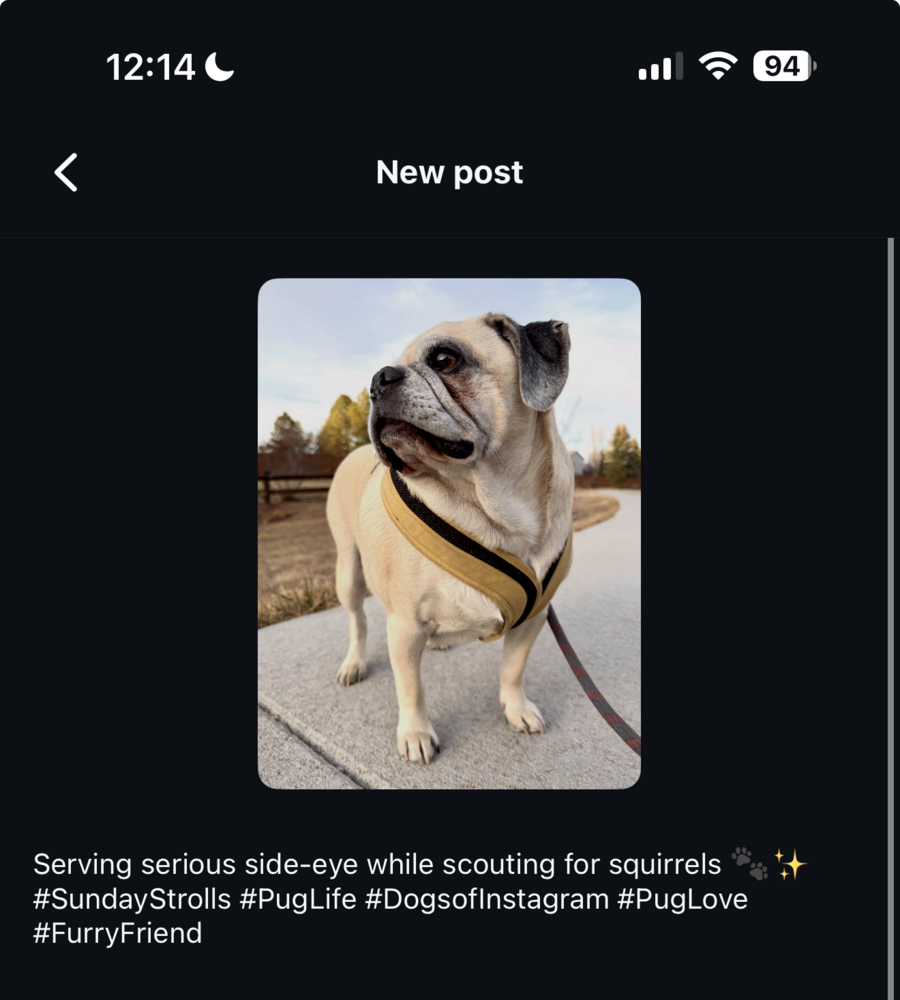 Select one or more photos when prompted, and the shortcut passes them directly to ChatGPT. Because this uses iOS’s native multimodal integration, the AI can actually see your images, not just receive text descriptions of them. The prompt instructs ChatGPT to analyze the visual content and generate an engagement-optimized Instagram caption followed by five relevant hashtags. The result copies automatically to your clipboard, and a notification confirms the action. Open Instagram, paste, and post.
Because ChatGPT is analyzing the actual visual content of your image, the captions and hashtags it generates are contextually relevant. It will recognize the difference between a landscape, a portrait, and a street photograph, adjusting its output accordingly. This shortcut requires an AI-capable iPhone for the vision features, and you can customize the prompt to better match your personal voice or brand if the default output feels too generic. Photographers who post to multiple platforms might create variants with different prompt instructions optimized for Twitter’s brevity versus Instagram’s longer-form captions.
Shortcut #5: Daily Photo Clean
Photo library maintenance is one of those tasks that everyone knows they should do but nobody actually does. The prospect of scrolling through thousands of images to delete redundant shots and failed experiments is simply too overwhelming to start. This shortcut reframes the problem entirely, turning library cleanup into a daily micro-habit built around an “On This Day” concept.
When you run the shortcut, it searches for photos taken on today’s calendar date across your entire photo history. Running it on December 27th, for example, finds photos taken on December 27th of every year you’ve had your phone. All matches get collected into a single view. If no photos exist for today’s date, you get a notification saying so. If photos are found, you’re presented with a selection interface showing images from this date across multiple years. Choose the shots you want to delete, and they’re removed from your library.
The idea of this approach is that it makes cleanup manageable while also being slightly nostalgic. You’re reviewing a manageable cross-section of your archive, photos from this exact date across your entire history with the device. It’s a more engaging way to prune your collection than facing the monolithic task of sorting through everything at once. The shortcut can be automated to run every morning if you choose, prompting you to delete one or two images as part of your daily routine. Over the course of a year, those small daily deletions add up to significant library maintenance without ever feeling burdensome.
Several of these shortcuts become significantly more powerful when combined with iOS automations. The Daily Wallpaper shortcut is an obvious candidate: set it to run automatically at 6 AM, and your phone refreshes its background every morning without any manual intervention. The Daily Photo Clean shortcut pairs well with a morning automation, perhaps running right after you dismiss your first alarm, turning library maintenance into a habit that requires no conscious decision to initiate.
The Photo Times shortcut could be automated to run when you arrive at a frequently visited shooting location, giving you an instant readout of the day’s light windows without having to remember to check. The Watermarks shortcut works well as a home screen widget since you’ll typically run it manually after a deliberate culling and selection process.
To create an automation, open the Shortcuts app, tap the Automation tab at the bottom, and tap the plus button. You’ll see a list of triggers including Time of Day, Arrival at Location, When Connecting to CarPlay, and many others. Select your trigger, choose which shortcut to run, and decide whether you want the automation to run automatically or require confirmation. Automations that run without confirmation are particularly powerful because they remove all friction from the process.
Getting Started
All five shortcuts are available for download exclusively through the links in this article. For shortcuts requiring AI capabilities, you’ll need an iPhone 15 Pro or later running iOS 18.1 or newer with Apple Intelligence enabled. The simpler shortcuts like Watermarks and Daily Wallpaper will work on any iPhone running a recent version of iOS.
The Shortcuts app has a learning curve, but these downloads give you working examples to examine and modify. Open any shortcut in edit mode to see exactly how it’s built, and don’t be afraid to experiment with customizations. The worst thing that happens is you delete the shortcut and come back to this article to re-download a fresh copy. Once you internalize the logic of how actions connect to one another, you’ll start seeing automation opportunities everywhere in your photography workflow. That export process you repeat identically every time? Automate it. That specific set of albums you add selects to after every shoot? Automate it. That weather check you do before heading out for golden hour? Automate it.
Your phone is more capable than you’re letting it be. These five shortcuts are just the beginning.